Babel
For multilingual users: Babel translates your text instantly via hotkey in any input field so you skip copy-paste steps.
Built by Lema · Artificial Intelligence · Developer Tools · Free
In category: #1369 of 2034 · Artificial Intelligence
Babel is a Community listing on Launch Llama with 4 total upvotes, founded by Lema who joined in Sep 2026, compared against 5 alternatives.
Community listing
Listing status
4upvotes
Community score
Lema (Joined Sep 2026)
Founder
Compared against 5 alternatives
Market comparison
Launched on Launch Llama Sep 14, 2026 · #54 of 125 that day
About
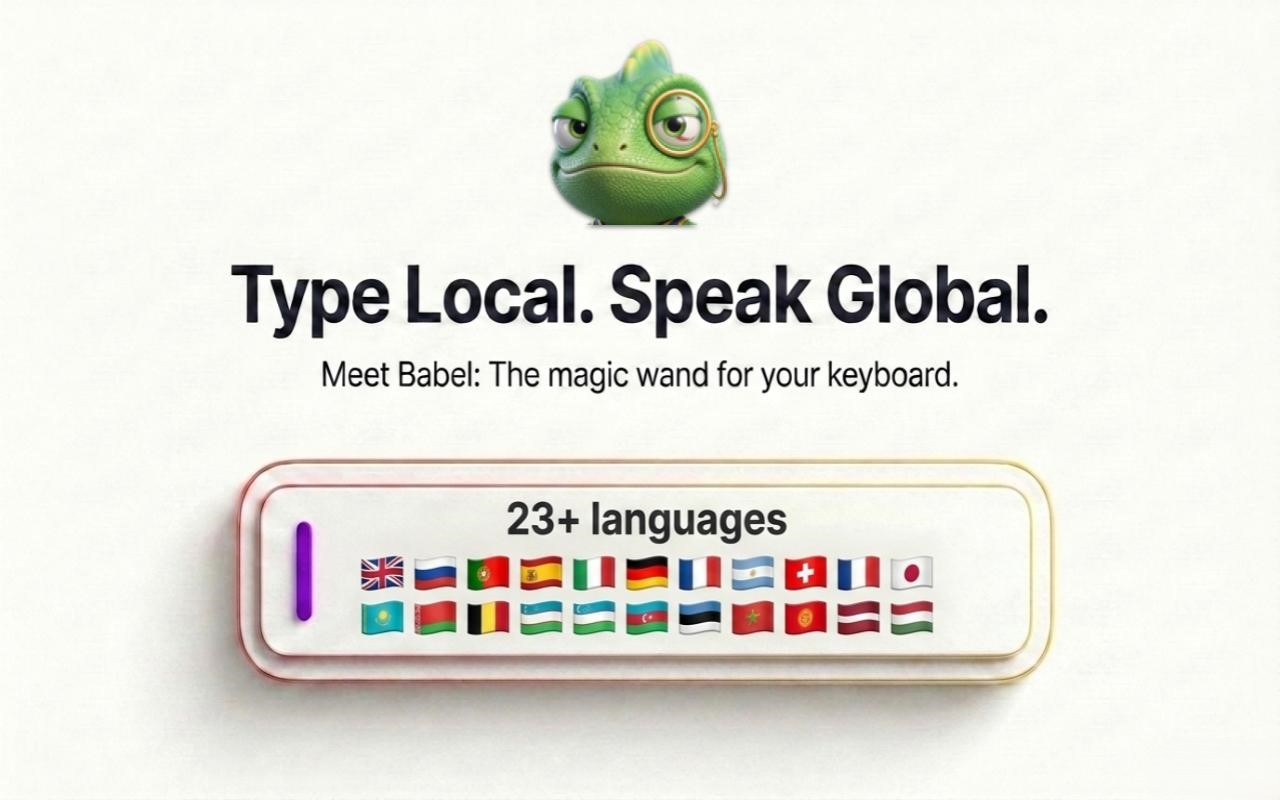
Type in your language, press hotkey, and get instant human-level translation or AI prompt enhancement directly inside any input field with zero popups.
Competitors: ChatGPT, Claude, Jasper
Key Features
- Translate text instantly within any input field using a keyboard hotkey
- Enhance AI prompts directly in-app without leaving your current workflow
- Support multiple languages for real-time translation
- Operate without popup dialogs or modal interruptions
- Access translation and prompt enhancement via hotkey activation
- Process text with human-level quality output
Use Cases
- Use hotkey translation in code comments to document functions in multiple languages without leaving your IDE
- Enhance raw AI prompts typed into ChatGPT, Claude, or other tools by pressing hotkey for instant refinement before submission
- Translate customer support tickets or feedback directly in your support tool's input field for multilingual team collaboration
- Convert technical documentation drafts to multiple languages in-place without context switching or copy-paste workflows
- Improve natural language in bug reports or GitHub issues by activating the hotkey enhancement before posting
Who it is for
- Multilingual users who write across languages in browser-based messengers and web apps.
- Creators and designers who write image-generation prompts for AI art tools like Midjourney and Flux.
- Users concerned about accidental data leaks who want API keys, passwords, and PII blocked before text is sent.
Pricing
Babel is free to use. See the website for details.
Babel at a glance
- 01What it is
- Babel: For multilingual users: Babel translates your text instantly via hotkey in any input field so you skip copy-paste steps.
- 02Pricing
- Babel pricing: Free.
- 03Best for
- Babel is best for multilingual users who write across languages in browser-based messengers and web apps., creators and designers who write image-generation prompts for AI art tools like Midjourney and Flux. and users concerned about accidental data leaks who want API keys, passwords, and PII blocked before text is sent.
- 04Alternatives
- Top Babel alternatives on Launch Llama: Trancy Air, DualTrans and Whisper AI.
FAQ
🎯 What is the full default hotkey mapping in Babel?
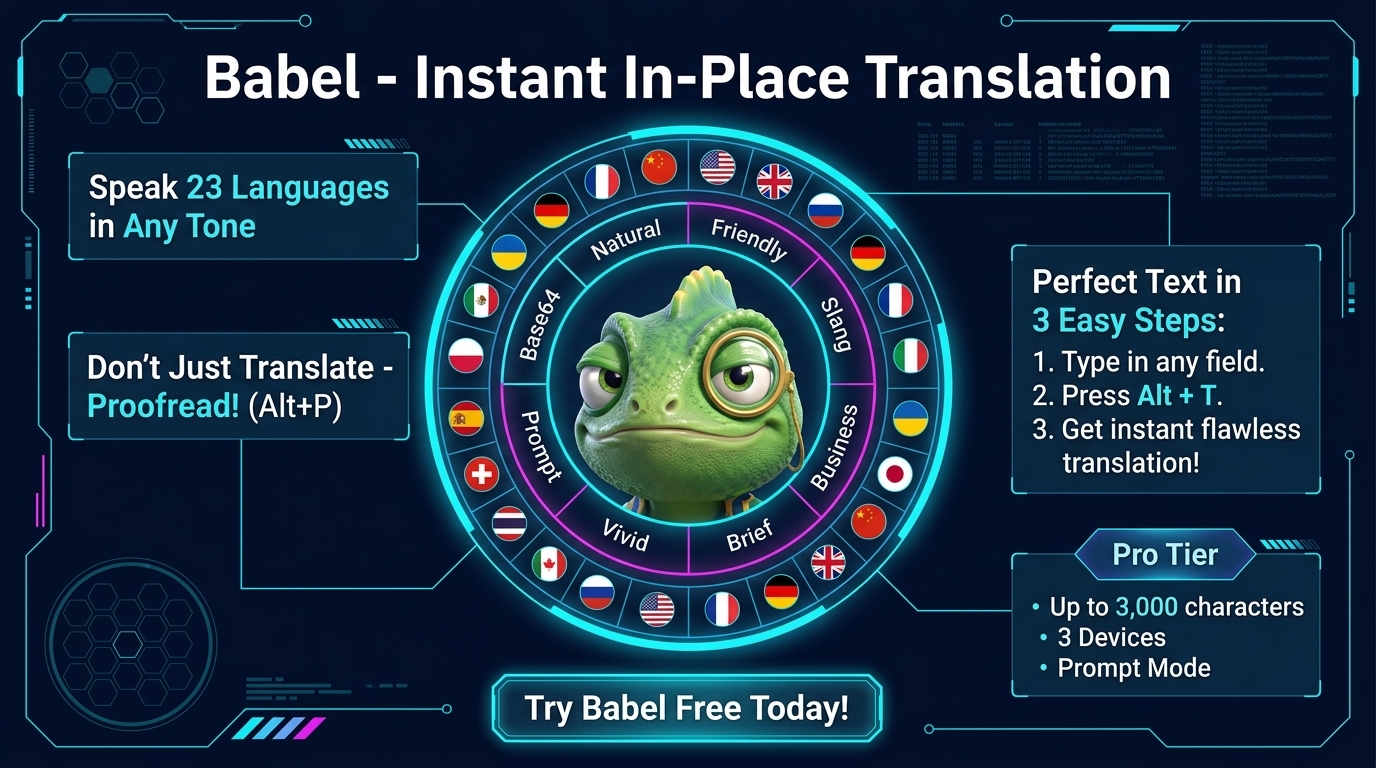
Babel is engineered around keyboard-first, zero-friction interaction. All hotkeys are registered using physical hardware key codes ( KeyboardEvent.code ), meaning they work identically regardless of whether your operating system keyboard layout is currently English, Russian, Ukrainian, German, or any other language: Shortcut Action Name Functionality Alt + T In-Place Translation Instant sub-300ms translation inside active input field or textarea. Alt + U Selection Translation Translates highlighted text anywhere on any webpage (including Shadow DOM) in-place. Alt + P Grammar Proofreading Polishes spelling, syntax, punctuation, and flow on the same language without translating. Alt + Q / Alt + W Language HUD Ring Rotates outer Cyan HUD ring counter-clockwise ↶ / clockwise ↷ to pick target language. Alt + A / Alt + S Tone HUD Ring Rotates inner Magenta HUD ring counter-clockwise ↶ / clockwise ↷ to pick conversation tone. Ctrl + Shift + F Layout Typo Fixer Instantly fixes text typed in th
⚡ How does In-Place Translation (Alt + T) work inside active input fields?
Unlike legacy translation services that force you to copy drafts, open another browser tab, paste text, copy the output, and navigate back, Babel operates directly within the browser's Document Object Model (DOM): Click into any text field, textarea, contenteditable box, or chat interface (Telegram Web, WhatsApp Web, Gmail, ChatGPT, Slack, Discord, Reddit). Type your thoughts in your native language naturally without worrying about foreign phrasing. Press Alt + T . Babel's 4-tier DOM injection engine swaps your draft with natural, context-aware translation in under 300 milliseconds. Cursor focus is preserved at the end of the line, allowing you to immediately hit Enter to send the message.
✍️ What is Proofreading mode (Alt + P) and how is it different from translation?
Alt + P is designed specifically for editorial polish in your current language: Zero Language Conversion: It strictly preserves the source language (English remains English, Russian remains Russian, Spanish remains Spanish). Comprehensive Correction: Corrects grammatical errors, typos, awkward comma placement, run-on sentences, and irregular capitalization. Stylistic Consistency: Smoothes rough phrasing into clean, authoritative, and natural prose while retaining your authentic voice. One-Stroke Replacement: Operates in-place within the same field with a single keystroke.
🔄 How does the Keyboard Layout Typo Fixer (Ctrl + Shift + F) work?
If you've ever typed an entire sentence only to realize your keyboard was in the wrong layout (e.g. ghbdtn? rfr ltkf& instead of привет, как дела? ), Babel eliminates the need to delete and re-type: Leave your cursor in the input field (or highlight the mistyped phrase) and press Ctrl + Shift + F . Babel instantly swaps characters into the correct layout in approximately 1 millisecond. 100% Offline: Operates locally via deterministic character mapping tables without sending network packets or consuming translation quota. Wide Layout Support: Bi-directional QWERTY conversions for Russian (ЙЦУКЕН), Ukrainian, Belarusian, Kazakh, Kyrgyz, Tajik, Georgian, and Armenian.
⚙️ Can I customize and remap hotkeys if they conflict with a website?
Yes. If you frequently use web applications with reserved keyboard shortcuts (such as browser-based IDEs, Figma, or web terminals): Right-click the floating mascot and select "⚙️ Settings" (or open extension options via your browser toolbar). Scroll to the "Keyboard Shortcuts" section. Click into the target input box and press your desired shortcut combination (e.g., Alt + Shift + T or Ctrl + Alt + Space ). Changes are stored in chrome.storage.local and applied immediately across all active tabs without restarting.
🛸 How do I move and position the floating Mascot on my screen?
The mascot is rendered inside an isolated Shadow DOM container to prevent host website CSS from interfering with its appearance: Hardware-Locked Drag & Drop: Click and hold the mascot avatar with the left mouse button, then drag it freely to any corner, edge, or workspace zone on your screen. Automatic Coordinate Sync: The exact screen coordinates are saved immediately to local extension storage. Whenever you navigate to new pages or relaunch the browser, the mascot stays right where you left it. Non-Intrusive Presence: The mascot stays quietly in the background until hovered, clicked, or summoned via keyboard shortcuts.
📍 What should I do if the mascot gets pushed off-screen or lost?
If changing display resolutions or aggressive website layout shifts push the mascot off-screen: Right-click anywhere on the mascot (or right-click the central hub if HUD is visible). Select "📍 Reset Position" from the context menu. The mascot will smoothly animate back to its default bottom-right anchor and display a confirmation thought bubble: "Position reset 📍" .
🙈 What is Stealth Mode and how do I hide the mascot completely?
For users who prefer a minimalist, completely clean web interface without floating overlays: Right-click the floating mascot avatar to open its glassmorphic context menu. Click "🙈 Hide Mascot" . The mascot will show a quick farewell cloud and unmount from the DOM ( display: none; pointer-events: none ). It will never block web elements, chat send buttons, or scrollbars.
👁️ Do shortcuts still work in Stealth Mode, and how do I bring the mascot back?
Yes, 100% of Babel's functionality remains active in Stealth Mode: Alt + T , Alt + P , and Ctrl + Shift + F continue translating and proofreading without interruption. When a translation completes, the mascot briefly fades in for 2 seconds to show a confirmation thought bubble, then smoothly vanishes. Restore Method 1 (Directly on Page): Press Alt + W to temporarily summon the HUD → click the "👁️ Show Mascot" button on the bottom HUD hint strip. Restore Method 2 (Settings): Open Babel Settings → under "Mascot & HUD" switch Mascot Visibility back to "Always Show" .
Alternatives
 DualTransHelps researchers, engineers, and language learners read foreign web pages and YouTube videos in two languages, placing translations beneath the original text to absorb content faster.
 Whisper AIFor professionals: Whisper AI transcribes voice to text across 25+ languages with smart cleanup and translation modes so you draft emails and documents hands-free.
More in Artificial Intelligence
New on Launch Llama
Launched this week · This month's launches · All products A–Z
Ask AI about Babel
Supporters
2 founders
2 founders supported Babel on Launch Llama.


For bots & AI agents
Machine-readable versions of Babel and Launch Llama. Fetch these instead of parsing this page.
This listing (.md) llms.txt llms-full.txt ai.txt Full catalog (.md) Endpoint index API docs MCP server MCP manifest Developer docs