Presentify
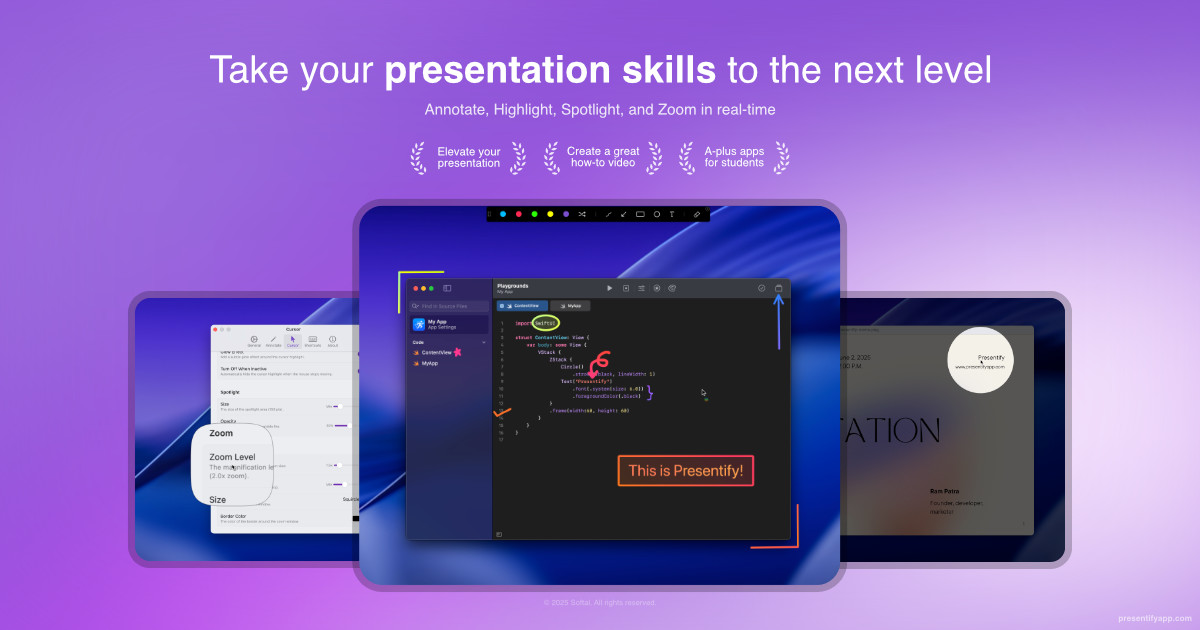
For presenters: Presentify annotates your screen, highlights your cursor, and zooms in on key areas so your audience stays focused during Zoom calls and slide decks.
Built by Ram Patra · Sales · Freemium
In category: #21 of 197 · Sales
Presentify is a Product Hunt listing on Launch Llama with 224 total upvotes, founded by Ram Patra who joined in Jun 2026, compared against 6 alternatives.
Product Hunt listing
Listing status
224upvotes
Community score
Ram Patra (Joined Jun 2026)
Founder
Compared against 6 alternatives
Market comparison
About
Presentify is a macOS app for annotating your screen, highlighting your cursor, spotlighting important areas, and zooming in for a closer look. It works with any presentation app, including Keynote, Google Slides, and Microsoft PowerPoint, as well as video calling apps like Zoom, Microsoft Teams, and Google Meet.
Launch Llama's Take
Based on Launch Llama data as of
Presentify has 224 upvotes, including the votes it received on Product Hunt, which ranks it #21 of 197 Sales tools on Launch Llama by upvotes, in the top quarter. It has been listed on Launch Llama since June 2026. No Launch Llama members have upvoted it yet and it has no reviews yet.
Key Features
- Draw on your screen with pens, highlighters, text, and shapes
- Highlight your cursor with a customizable ring or halo
- Spotlight specific areas while dimming the rest of screen
- Zoom in to magnify small text and fine details
- Create a digital whiteboard for sketching and brainstorming
Use Cases
- Technical trainers explaining concepts with on-screen drawing during demos
- Teachers helping students follow along during online lessons
- Presenters demonstrating software with many controls or buttons
Pricing
Presentify offers a free plan plus paid tiers. See the website for current pricing.
FAQ
Are there any offers going on?
Presentify offers a 50% discount to businesses and educational institutions when they purchase 20 or more copies of the app through Apple Business Manager and Apple School Manager , respectively.
Can I draw using my iPad?
Yes, certainly. To do this, you need to pair your iPad with your MacBook via Apple's Sidecar, Astropad, Duet, or other similar software.
Which macOS versions does it support?
It runs on macOS 10.13 and later, that is, macOS Ventura and above. If you are on an older version of macOS, you can still use the previous versions of Presentify.
Can I try before buying?
Presentify doesn't offer a trial version on the App Store, but you can definitely try it out on Setapp for free. They give a 7-day free trial to try out all the apps on their store, not just Presentify.
How do I start the app?
Presentify is a macOS menu bar app, so it doesn't have a traditional window. To get started, click the Presentify icon in Launchpad or type "Presentify" in Spotlight and press Return. After that, a small Presentify icon appears in the menu bar . Click it to start annotating any screen or highlight your cursor. You can also toggle these features with keyboard shortcuts. If there's not enough space in your menu bar, you may not see the Presentify icon. To resolve this, use an app like Ice (free and open source) to declutter your menu bar and free up space. Watch this video to see it in action.
How do I contact support?
You can click on the support link found at the bottom of this page. However, keep in mind that sometimes it can take a few hours to get a response. Additionally, you can ask on X , and follow @softal_io to stay abreast of the latest updates.
Is there a trial version?
Presentify doesn't offer a trial version on the App Store, but you can definitely try it out on Setapp for free. They give a 7-day free trial to try out all the apps on their store, not just Presentify. If for some reason you only prefer the App Store, then you can easily request a full refund from Apple.com by following the instructions here if you're not satisfied with the app.
Can I purchase the app outside the App Store?
Yes, you can purchase the app directly on the website . After a successful payment, you’ll receive a .dmg installer for macOS and a license key to activate the app on your device.
How do I draw a straight line?
When in Annotate Screen mode, select Free Hand, the first option after the colors on the Annotate Controls panel, and then while drawing press and hold the Shift Key (⇧) to get a straight line.
Where do I find all the key shortcuts for annotating?
When in Annotate Screen mode, press the Question (?) or the Slash (/) key to see all the keyboard shortcuts for annotating. Press the same key to hide the shortcuts window.
Founder Guides
Alternatives
 GhostPrompterFor presenters: GhostPrompter displays your script in a click-through overlay so you read naturally without losing eye contact during recordings, webinars, or live presentations.
 PokeyFor remote presenters: Pokey animates your cursor into an expressive hand pointer so your audience stays engaged during Zoom and Meet calls.
 Screenify StudioFor builders: Screenify Studio turns rough screen recordings into polished product demos with cinematic motion so you skip editing.
Ask AI about Presentify