
InTray
New screenshots, downloads and phone photos, ready to drag
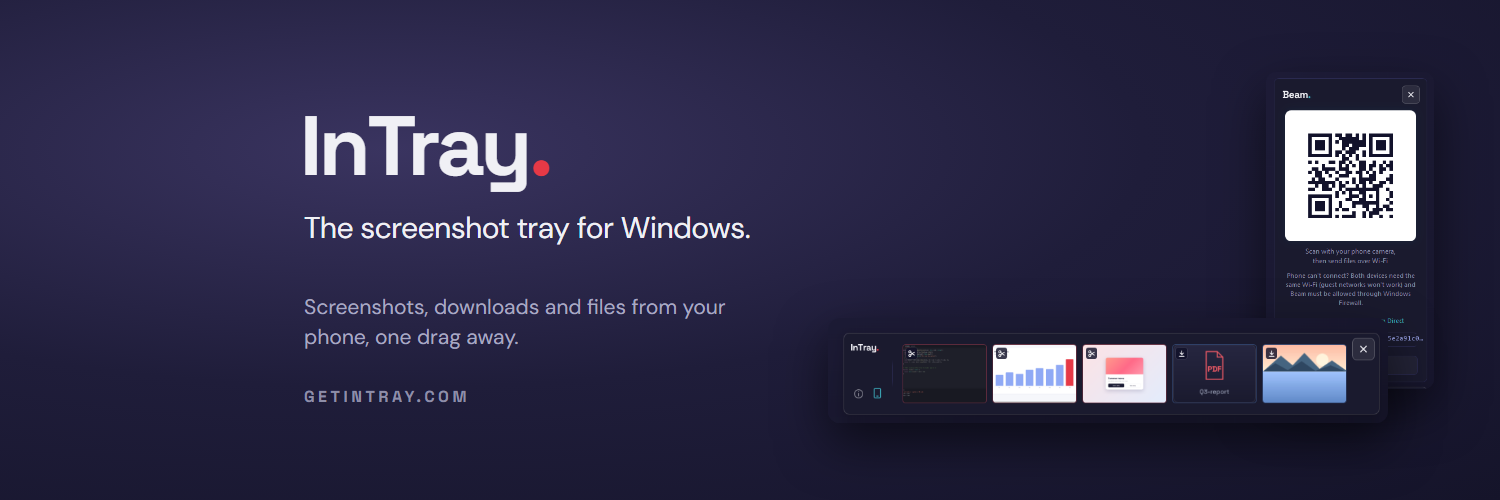
InTray catches every screenshot, download and phone photo in one floating strip on Windows. Drag them into any app. Free 7-day trial, then £14.99 one-time.
Built by Matthew Channell and Matt Channell · Productivity · Developer Tools · Paid
In category: #482 of 1396 · Productivity
InTray is a Community listing on Launch Llama with 30 total upvotes, founded by Matthew Channell and Matt Channell who joined in Jul 2026, compared against 6 alternatives.
Community listing
Listing status
30upvotes
Community score
Matthew Channell and Matt Channell (Joined Jul 2026)
Founder
Compared against 6 alternatives
Market comparison
Launched on Launch Llama Jul 27, 2026 · #72 of 128 that day
About
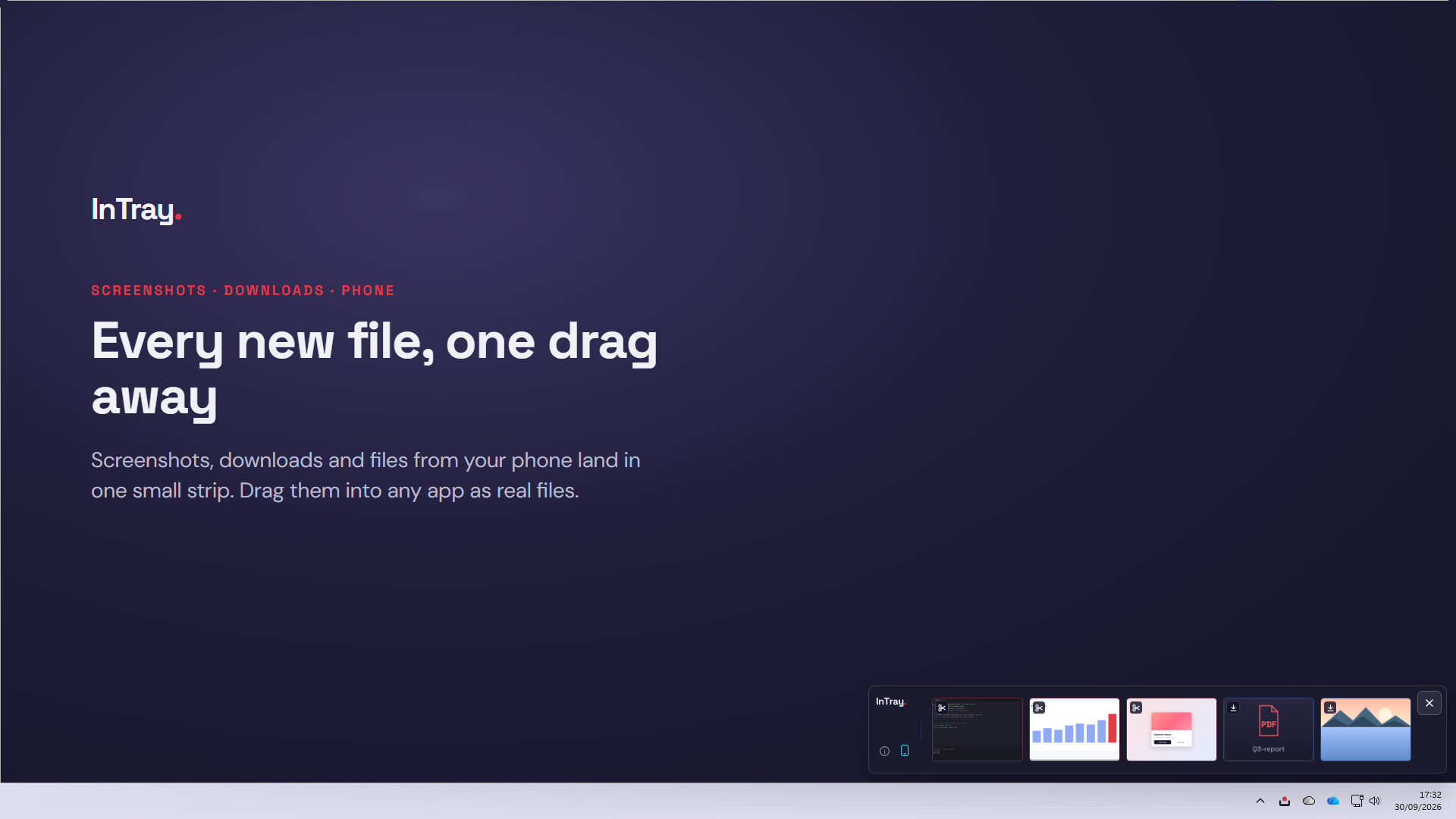
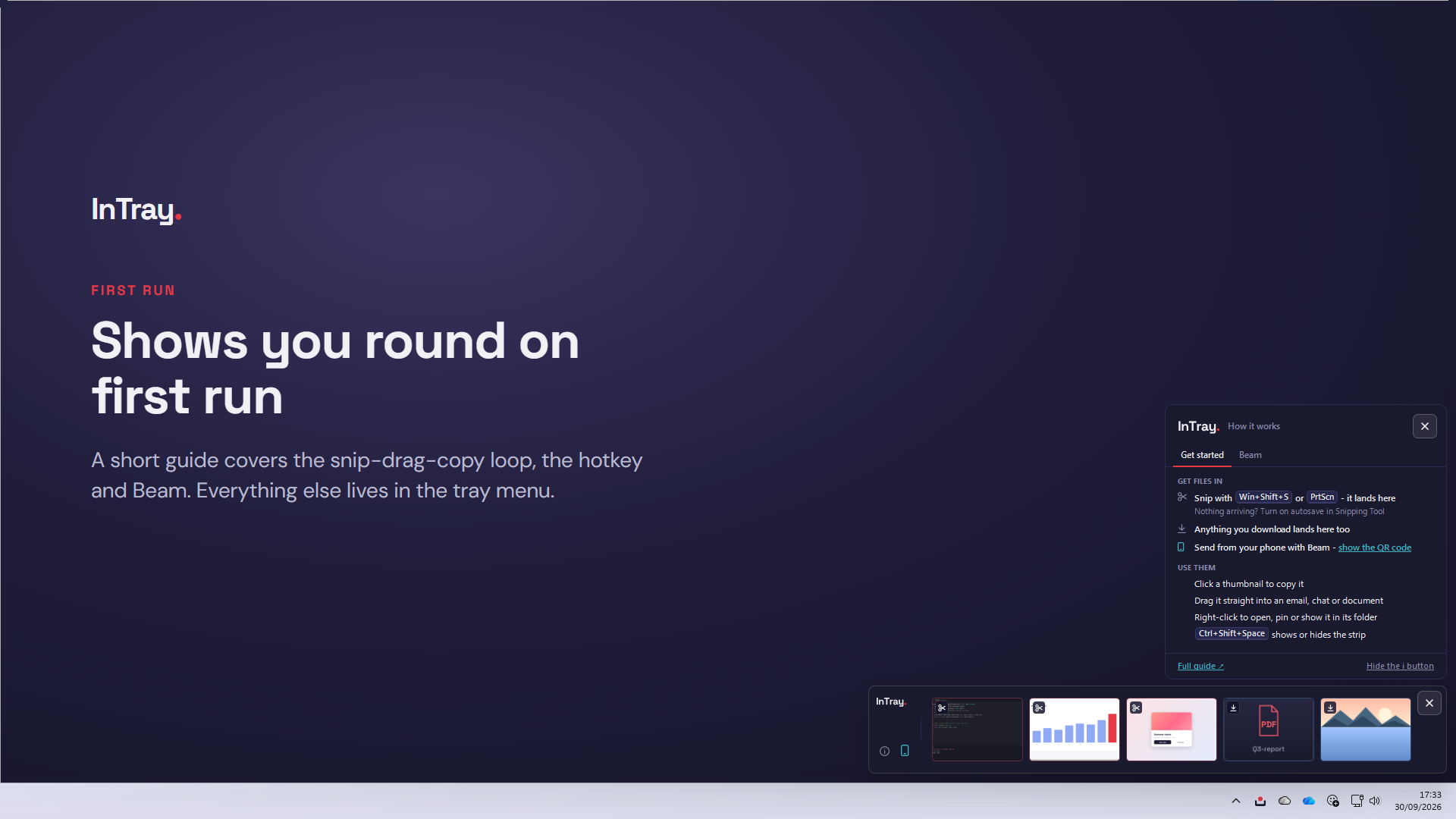
You press Win+Shift+S (or click the Snipping Tool), then spend ten to twenty seconds hunting through File Explorer before you can use the screenshot. InTray removes the hunt. Every new screenshot, download and phone file lands in one small floating strip, ready to drag into VS Code, Outlook, ChatGPT or a browser upload as a real file.
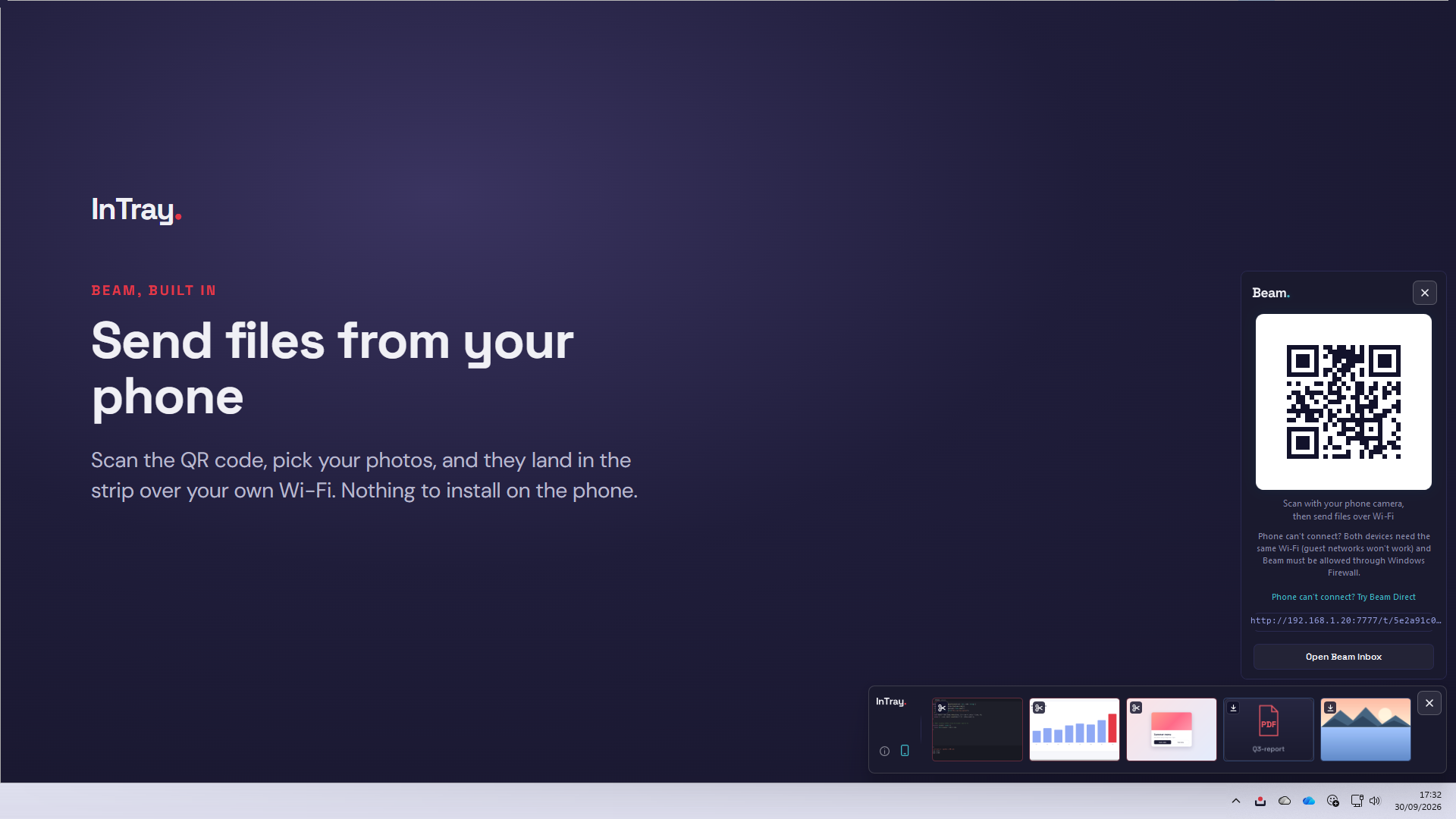
Beam, a new InTray feature, gets files off your phone. Scan the QR code on your desktop, pick your photos on the page that opens on your mobile, and they land in the strip over your own Wi-Fi. Nothing to install on the phone, no cloud, no account.
Windows 10 and 11. Download free: every feature, Beam included, for 7 days, then £14.99 one-time. No subscription.
Key Features
- Capturs Screenshots, Downloads and Mobile files, each one toggleable, and each re-pointable to
- Drags as a real file, which matters
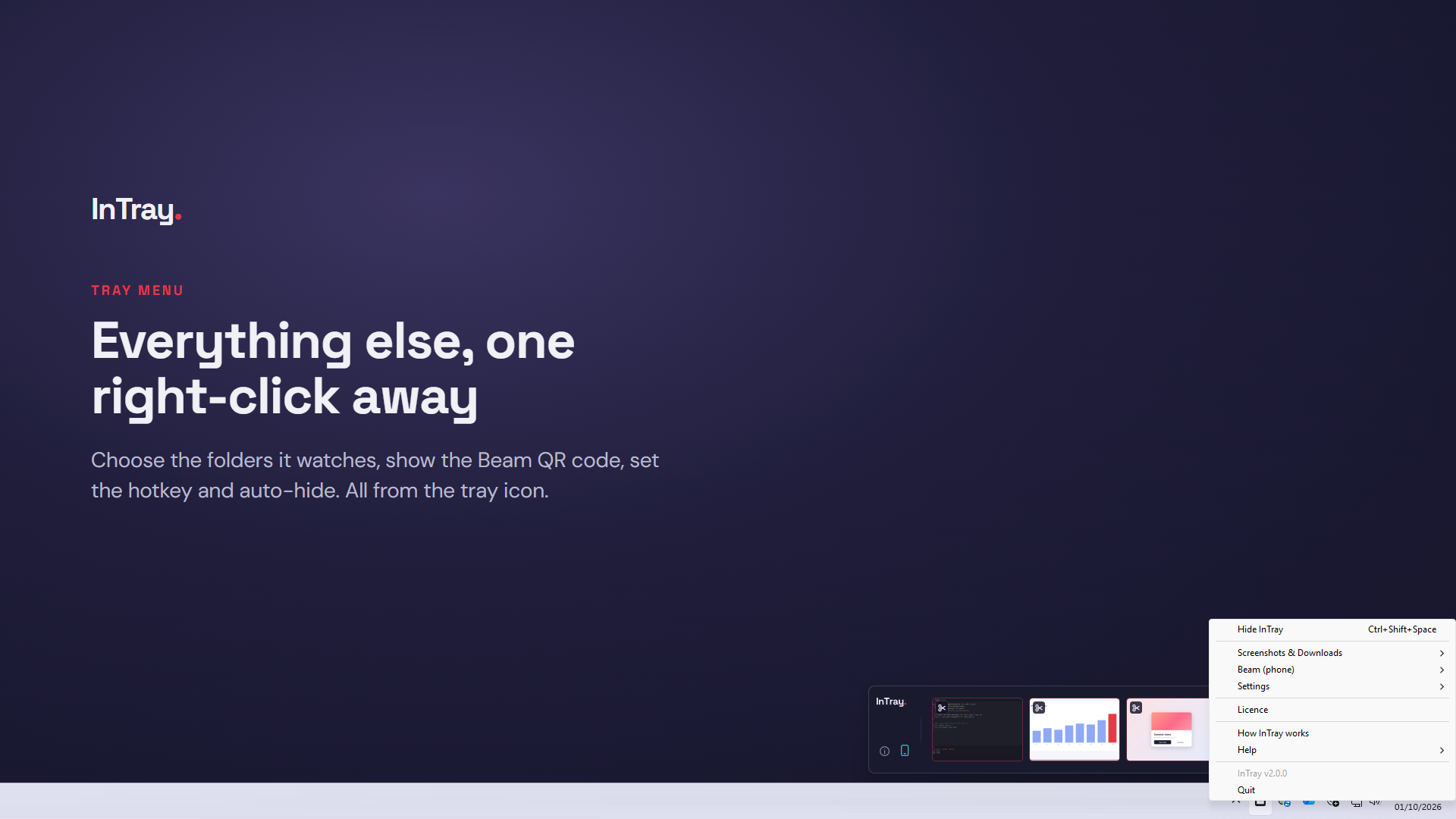
- Right-click for the rest
Use Cases
- Iterate with AI without losing your shots. Screenshot the broken layout, drag it into Claude, get a fix, screenshot the result, drag that in too
- Get files into upload fields that reject a paste. Browser upload zones, VS Code, Outlook attachments and Teams all want a real file
- Pin the thing you keep referring to. Working from a design, a spec screenshot or an error message across a long session? Pin it and it stays in the tray
- Catch the images your AI tools generate. Anything landing in Downloads shows up in the same tray, so a generated image or an exported asset is one drag away
- File a bug without leaving the bug. Snip, drag into the issue, keep typing
- Get mobile photos and files from your phone and onto your desktop in seconds over your wifi
Who it is for
InTray is for people on Windows whose screenshots, photos and files are working material, not souveniers. If you snip errors into Claude, designs into a ticket or dashboards into a deck dozens of times a day, you pay a ten-second plus File Explorer tax on every one.
- - Builders working with AI tools to code, bug fix, iterate - you know the drill.
- - Developers. Bug reports, PR descriptions, GitHub issues, Jira tickets.
- - Knowledge workers & consultants. Slides, feedback, references, things to send.
- - Support & QA. Capture a screen, attach it to a ticket, move on.
- - InTray is not for you if you are on macOS. The problem is a Windows problem.
Pricing
InTray is a one-time purchase. No subscription and no renewal. Standard - £14.99 one-time, 1 device Personal - £22.99 one-time, 2 devices Professional - £29.99 one-time, 3 devices Updates are free for v2.x. Try it first: download it for free, and every feature works for 7 days - No card/account needed to trial it. After 7 days, InTray locks, and you can buy a licence to carry on, or uninstall.
Verdict
InTray does a few things really well, and it doesn't pretend otherwise. If you are on Windows and you screenshot constantly- into AI tools, into tickets, into docs- it removes a repetitive ten-second-plus interruption you have probably stopped noticing. InTray catches your downloads too and lets you transfer files from your mobile to your desktop over your wifi. If you screenshot two or three times a week, you will not feel the difference, so skip it. If you are on macOS, it is not for you, and it never will be. It is £14.99 one-time with a 7-day free trial and no account, so the honest answer is to run the trial for a week and see whether you notice it. That is what it is there for. Here's a recent testimonial from a beta tester: "I live in screenshots - slides, feedback, things to reference. InTray catches every one and keeps it a drag away, so I never break flow digging through folders for a file I took two minutes ago." - Andrew Wallbridge, leadership consultant & author
FAQ
What is Clip?
Clip is a floating tray for Windows 10/11 that watches your Screenshots and Downloads folders. When a new file lands, a thumbnail appears in a strip on your screen, and you can drag it straight into any app as a real file, click it to copy, or pin it to keep it around. It does not take the screenshot - Windows already does that. It solves what happens next.
Who is Clip for?
People on Windows who take a lot of screenshots: builders working with Claude, ChatGPT or Cursor, developers filing issues and PRs, consultants and knowledge workers living in slides and feedback, and support and QA teams attaching evidence to tickets. If you rarely screenshot, you will not get much from it.
How much does Clip cost?
£14.99 one-time for a single device, £22.99 for two, £29.99 for three. No subscription, and updates are free for v1. There is a 7-day free trial with no card and no account required.
What category does Clip belong to?
It is a screenshot tray - a small Windows utility. It is not a screenshot capture tool like ShareX or Greenshot, because it does not capture anything; it picks up what Win+Shift+S has already saved. It is not a clipboard manager either, because it works with files rather than clipboard contents, which is precisely why the drag works where a paste does not.
How do I get started with Clip?
Download it from clip.bit-soft.co.uk and run the installer. There is no account to create and nothing to configure. Take a screenshot with Win+Shift+S and the thumbnail appears in the tray straight away, ready to drag. If your Screenshots folder is somewhere non-standard, Clip shows a warning bar with a one-click fix. It starts with Windows by default, which you can turn off from the tray menu at any time.
Who is InTray for?
InTray is for people on Windows whose screenshots, photos and files are working material, not souveniers. If you snip errors into Claude, designs into a ticket or dashboards into a deck dozens of times a day, you pay a ten-second plus File Explorer tax on every one. • Builders working with AI tools to code, bug fix, iterate - you know the drill. • Developers. Bug reports, PR descriptions, GitHub issues, Jira tickets. • Knowledge workers & consultants. Slides, feedback, references, things to send. • Support & QA. Capture a screen, attach it to a ticket, move on. • InTray is not for you if you are on macOS. The problem is a Windows problem.
Alternatives
 OrganizeShotsFor professionals: OrganizeShots auto-sorts messy screenshots into 10 smart folders in your browser so you find important info instantly without uploading anything.
 PixPinFor developers and designers: PixPin captures screenshots, annotates them, pins images to your screen, and extracts text with OCR—all offline and fast.
Ask AI about InTray
Supporters
24 founders
24 founders supported InTray on Launch Llama.


